

Directory profile
Fill in your business details, preview how customers will see you, and publish your listing on ContractorsNearMe.
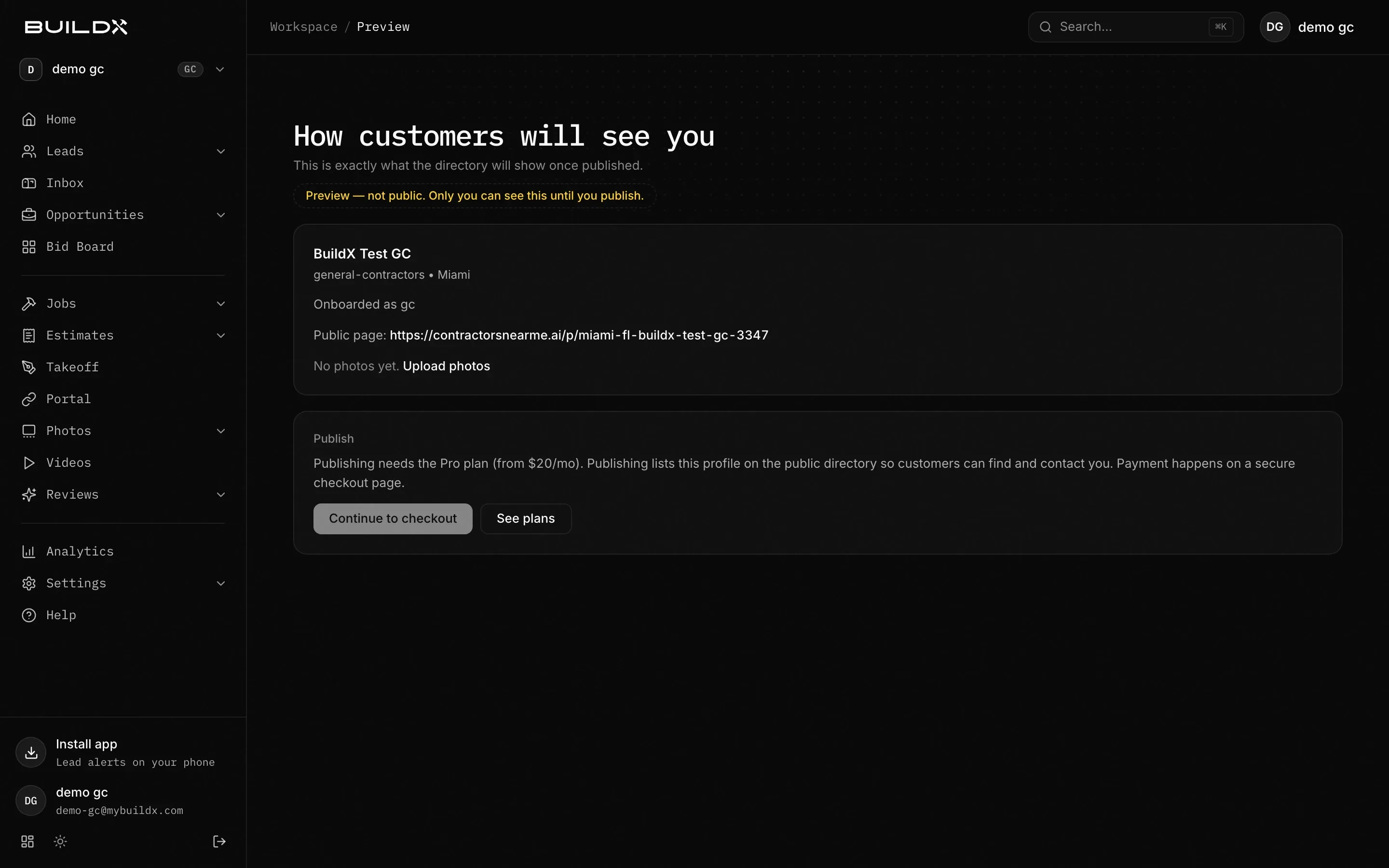
Your directory profile is the public listing customers find on ContractorsNearMe (contractorsnearme.ai). You build it in MyBuildX and check it at https://mybuildx.com/profile/preview (How customers will see you). Publishing is for General Contractor accounts with the Contractor ID plan.
What you can do
- Fill in your listing in Settings: business name, handle, trade, phone, website, city, about text, coverage, specialties, credentials and offers.
- Upload project photos.
- Preview the listing privately.
- Publish it with Publish profile (or buy the plan with Continue to checkout first).
- Copy your Contractor ID, profile slug and contractor.id short link from Home.
Get listed
The Get listed on CNM checklist on Home tracks four of these steps: business info, photos, preview, and publish.
- Add your business info. In Settings → Business, fill in Business name, Handle (claim), Trade, Phone, Website, and City (with a 2-letter state). Press Save.
- Add profile details. In Settings → Profile, write the About text (up to 2,000 characters), and set Phone, Service radius (miles), and Specialties. Saving shows “Profile saved, CNM payload updated.”
- Upload project photos at https://mybuildx.com/photos/uploads. See Photos and videos.
- Preview your profile at https://mybuildx.com/profile/preview. You see your business name, trade, city, about text, photos, and the Public page link on contractorsnearme.ai.
- Publish. On the preview:
- If your plan is active, press Publish profile. The panel then shows Published with the date.
- If not, press Continue to checkout (“Publishing needs the Pro plan (from $20/mo)”), pay, then come back and press Publish profile.
Use the preview page to publish. The Publish your listing button on Home’s listing card opens Settings, which has no publish button.
Your handle and links
- The handle you claim in Settings → Business must be 3 to 40 characters: lowercase letters, numbers and hyphens. It’s unique across BuildX.
- With a handle, you get a contractor.id short link. It starts working once your listing is published.
- Home’s listing card shows your Contractor ID and Profile slug with Copy buttons, and your QR code once the listing is published.
Make the listing stronger
- Credentials (Settings → Credentials): upload PDFs under Licenses, Insurance, Credentials, or Trust Badges with Upload for review. Each upload shows Pending review until BuildX checks it.
- Offers (Settings → Offers): add a title, discount and expiry with Create offer. Active offers are sent with your profile to ContractorsNearMe.
- Reviews: reply to them on Reviews.
Good to know
- Customer and supplier accounts see Not applicable: listings are for contractors.
- Subcontractor accounts can preview but don’t get the publish panel. To get listed as a sub, see Claim your profile.
- If you already have an unclaimed profile on ContractorsNearMe, claim it instead of starting over. See Claim your profile.
- Changes you save in Settings sync to ContractorsNearMe. If the listing card says your directory link isn’t ready yet, it appears once your profile syncs.