
Plans and pricing
What Contractor ID and BuildX Studio cost, what each one unlocks, who pays nothing, and how to manage billing.
BuildX has two paid plans, both bought on mybuildx.com: Contractor ID for your directory listing and leads, and BuildX Studio for drawings and takeoff. Prices are flat. BuildX doesn’t take a percentage of your jobs.
What you can do
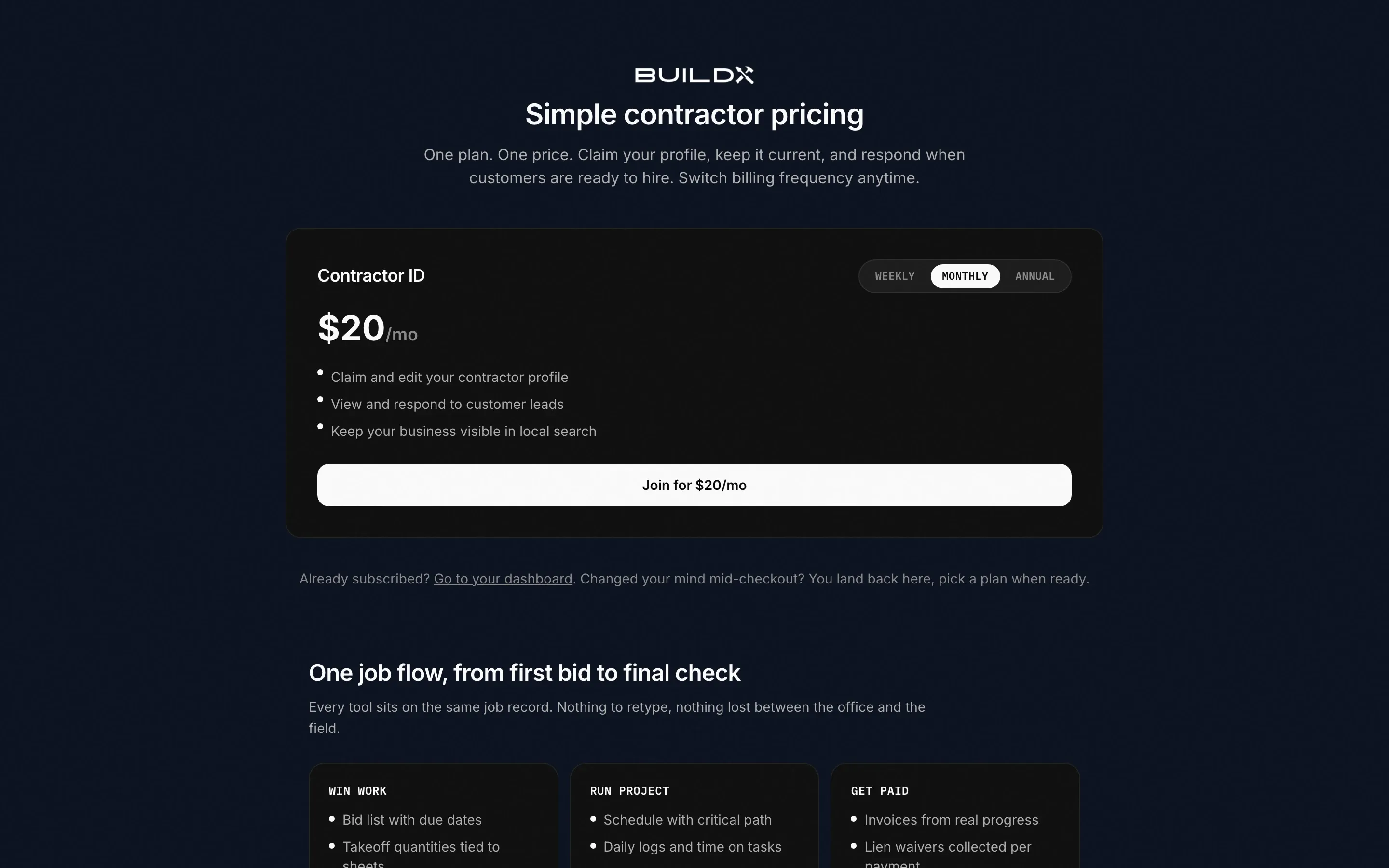
- Compare plans on https://mybuildx.com/pricing (Simple contractor pricing).
- Buy Contractor ID with Join for $X.
- Buy Studio from the Takeoff page with Upgrade to Studio.
- Manage your payment method and plan in Settings → Billing.
Contractor ID
| Billing | Price |
|---|---|
| Weekly | $10 per week |
| Monthly | $20 per month |
| Annual | $200 per year |
It’s the same plan at every interval. It covers:
- Claim and edit your contractor profile.
- View and respond to customer leads.
- Keep your business visible in local search.
Publishing your directory listing needs this plan. On the profile preview the plan is called Pro (“Publishing needs the Pro plan”). It’s the same plan. See Directory profile.
BuildX Studio
BuildX Studio is $200 per month. It adds the Studio app at https://studio.mybuildx.com (drawings, takeoff, estimate workbook, bid leveling, bid calendar, crews and purchasing) and unlocks the Takeoff page in MyBuildX. See Studio overview.
Buy a plan
Contractor ID
- Go to https://mybuildx.com/pricing.
- Pick Weekly, Monthly, or Annual.
- Press Join for $X. If you aren’t signed in, you’ll sign in first.
- Pay on the secure Stripe checkout page.
You can also start checkout from Continue to checkout on your profile preview, or Start Checkout in Settings → Billing (monthly).
BuildX Studio
- In MyBuildX, open Takeoff in the sidebar.
- In the Turn your plans into a complete takeoff automatically window, press Upgrade to Studio.
- Pay on the Stripe checkout page.
Manage billing
- Open Settings → Billing (https://mybuildx.com/settings?tab=billing).
- The table lists your billing history (Date, Action, Amount, Balance, Reference).
- Press Billing Portal to update your card, change plans, or cancel in Stripe.
Who pays nothing
- Customers (property owners) don’t pay. They also don’t need an account to open an invoice link a contractor sends.
- Subcontractors and suppliers don’t need a plan to use their accounts. Studio is optional.
- Your teammates and customers aren’t charged per seat.
Good to know
- There is no free trial.
- The pricing page offers a 30-day money-back guarantee. To ask for a refund, open a ticket in Help with the Billing category.
- Cancel any time from Billing Portal.
- Deleting your account also cancels any active subscription. See Accounts and sign-in.