

Jobs
See your active jobs by status, map job sites, organize jobs with labels, keep saved text and photo tags, and build showcases of finished work.
Jobs live at https://mybuildx.com/jobs (page title My Jobs). General Contractor and Subcontractor accounts have them. A job is work you won. Most jobs start when you press Convert to Job on a lead.
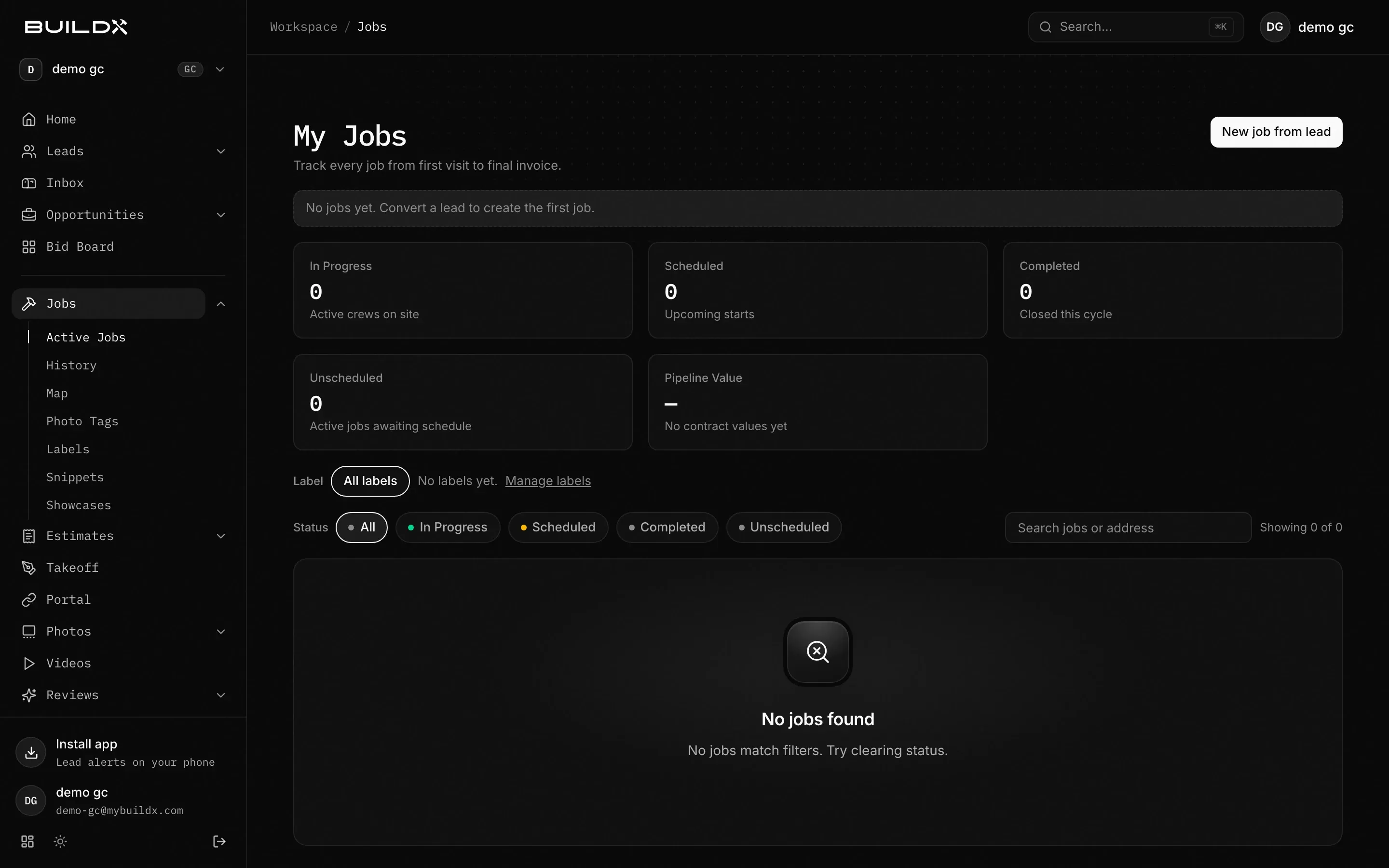
What you can do
- Filter by Status: All, In Progress, Scheduled, Completed, Unscheduled.
- Filter by Label, or search with Search jobs or address.
- Read the tiles: In Progress, Scheduled, Completed, Unscheduled, and Pipeline Value (the sum of contract values).
- Open a job’s Field page for its summary.
- Use the pages under Jobs in the sidebar: Active Jobs, Map, Photo Tags, Labels, Snippets, Showcases.
Create a job
- On Leads, move a lead to Qualified.
- Press Convert to Job. The lead becomes Won and the job appears on My Jobs with the customer’s details.
You can also ask Ask BuildX to create a job (“Create a job for a roof replacement at 12 Oak St, Austin TX”). The Jobs page itself has no “new job” form.
Change a job’s status or details
The Jobs page doesn’t have edit buttons. Ask Ask BuildX to change a job’s title, customer, trade, address or status (for example “Mark the Oak St job in progress”). It shows an approval card before it saves. See Home.
Map your job sites
Open Map (https://mybuildx.com/jobs/map, Job map). Jobs with a site address show as pins. Click a pin to open the job drawer with the address, labels, and latest site photo. Jobs without an address don’t appear.
Organize with labels
Labels organize jobs. Tags describe photos.
- Open Labels (https://mybuildx.com/jobs/labels).
- Type a name (for example Rush, Warranty, VIP), pick a color, and press Create label.
- To put a label on a job, ask Ask BuildX (“Label the Oak St job Warranty”). There’s no label picker on the job card yet.
- On My Jobs, pick a label next to Label to see only those jobs. Manage labels goes back to the Labels page.
Keep photo tags
Photo Tags (https://mybuildx.com/jobs/tags) keeps the tags used on job photos. Six default tags come with every account. Press Add tag to create one, or use Rename, Merge (moves photos to another tag and deletes this one), and Delete. Crew members see tags read-only.
Save text you repeat
Snippets (page title Saved text, https://mybuildx.com/jobs/snippets) stores phrases your crew repeats, like gate codes and arrival notes. Enter a title and text, then press Add snippet. Use Edit or Delete to change one. Copy the text where you need it.
Build a showcase
A showcase is a curated set of finished-work photos.
- Open Showcases (https://mybuildx.com/jobs/showcases).
- Under New showcase, enter a title and a one-line description, and pick a Job.
- Click photos from that job to select them (they show Picked).
- Press Save draft.
- Press Publish on the draft. Published showcases get View public and Unpublish.
Good to know
- Showcase links (
mybuildx.com/showcase/...) currently open the MyBuildX sign-in page for anyone who isn’t signed in, so customers without an account can’t view them yet. - The Field page shows the job summary. Its Logs, Punch Lists, Safety and Map tabs show “Coming soon” for most accounts.
- The History page for completed and archived jobs isn’t turned on for accounts right now.
- BuildX doesn’t schedule crews or check crew capacity. See Scheduling and crews.